PPSSPP Setup Guide
This guide shows you how to set up PPSSPP on Xbox using either an external USB drive (recommended) or internal storage.
If you have not prepared your USB for emulators yet (NTFS format and correct permissions), follow the USB section in the Xbox Developer Mode Setup Guide first, then come back here.
PPSSPP (PSP)
USB-first setup, internal storage works if needed.
- External USB auto-pathing when permissions are correct
- Custom textures and cheats via PSP folders
- Games listed from E:\PSP\GAME when pinned
- Missing ALL APPLICATION PACKAGES permission blocks USB access
- Selecting internal by mistake requires re-selecting PSP folder
- Zipped games or nested folders prevent detection
Format USB NTFS and set permissions before first launch.
PPSSPP External USB Users
Make sure your USB is NTFS and has ALL APPLICATION PACKAGES -> Full Control, otherwise games will not load. Use the USB section in the Xbox Developer Mode Setup guide.
Download PPSSPP
Get PPSSPP from Emulators on Emulation Revival Store (or the PPSSPP UWP release the store mirrors). The download is a ppsspp_uwp.zip: extract it on your PC, then use Device Portal My games & apps - Add to sideload the PPSSPP*.appx inside (add any dependency packages the zip includes if Device Portal asks).
Once your USB has been prepared using the Dev Mode USB steps (formatted to NTFS and with the correct permissions), plug it into your Xbox, open PPSSPP, and it will ask whether to set the PSP folder on External (USB) or Internal (app storage).
Create or Choose a PSP folder = External USB
Use App Private Data = Internal Storage
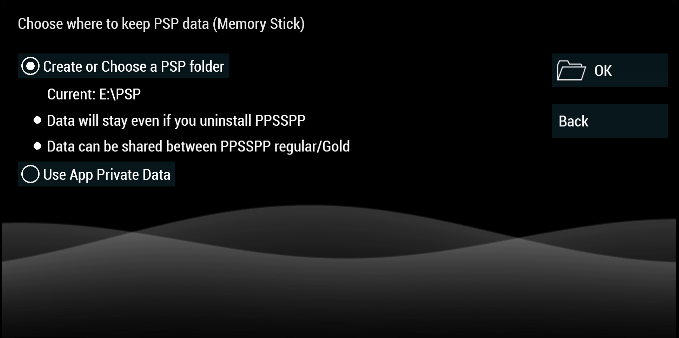
But If you accidentally choose Use App Private Data then No Problem! Just go to Settings > System > Click Memory Stick Folder then Choose Create or Choose a PSP folder
Once you choose "Create or Choose a PSP folder" then PPSSPP will create Folders for you automatically on USB then it should be like this in the Picture:
Games
PPSSPP will automatically set Games Path for you but If you are not able to see your Games then you can set path by clicking parent directory button until you see Letter Drives then click E:/ > PSP Folder > GAME. Once you are in GAME then click + button to pin Path. Just like this in the Picture:
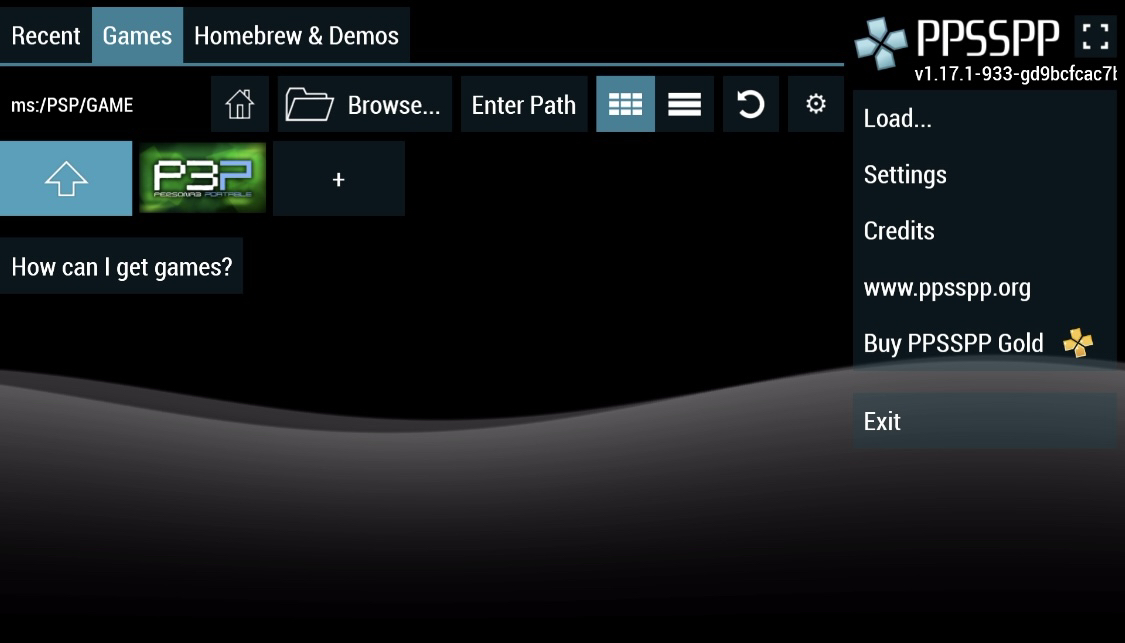
And then Make sure your GAME folder is like in the Picture:

Textures
PPSSPP automatically does same as above but Make sure Specific Game Folder name is GAMEID like in the Picture:

You can get Textures Packs from Resource channels or Official Forum of PPSSPP Orgs
If you get Textures Packs ZIP then you can put them in USB and then go to PPSSPP and click ZIP then Install Button so PPSSPP can automatically unzip Textures Packs and put them in Textures Folder but you can unzip Textures Pack manually by yourself on PC then put them in TEXTURES Folder like in the Picture above.
Steps to Enable Custom Textures:
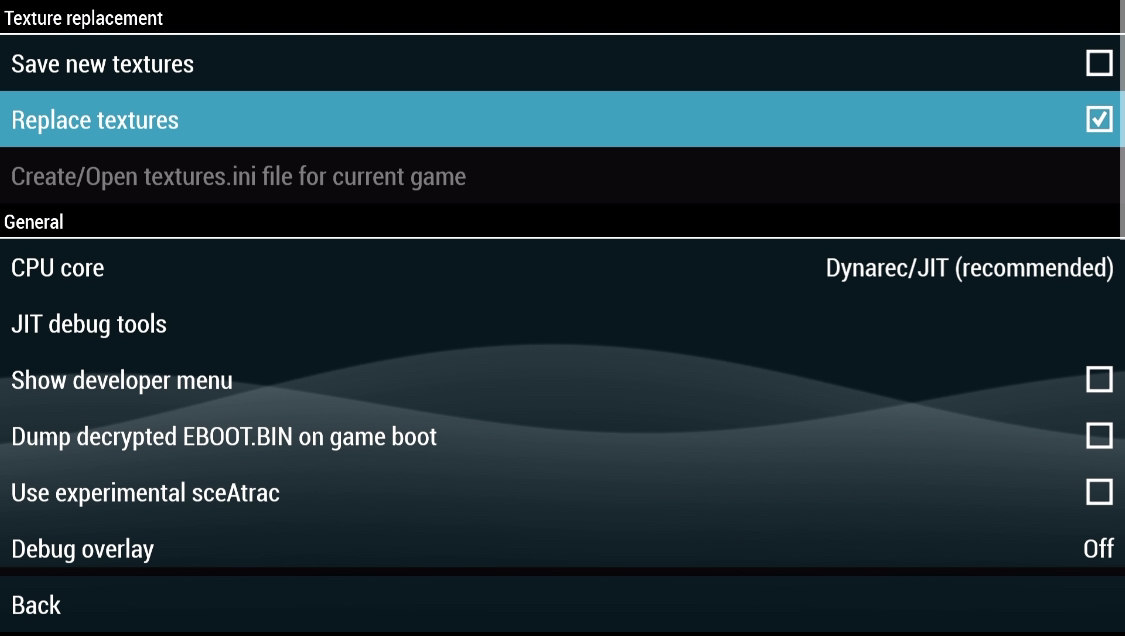
In the settings menu, go to Graphics and scroll down to Texture scaling. Set Upscale level to Off. Navigate to Tools, then Developer tools, and ensure Replace textures is enabled. Just like in the Picture:
Cheats
To install cheats on PPSSPP, you can get cheats files with .ini type once you got Cheat Files ready then put them in Cheats Folder inside PSP Folder. Look at Picture:
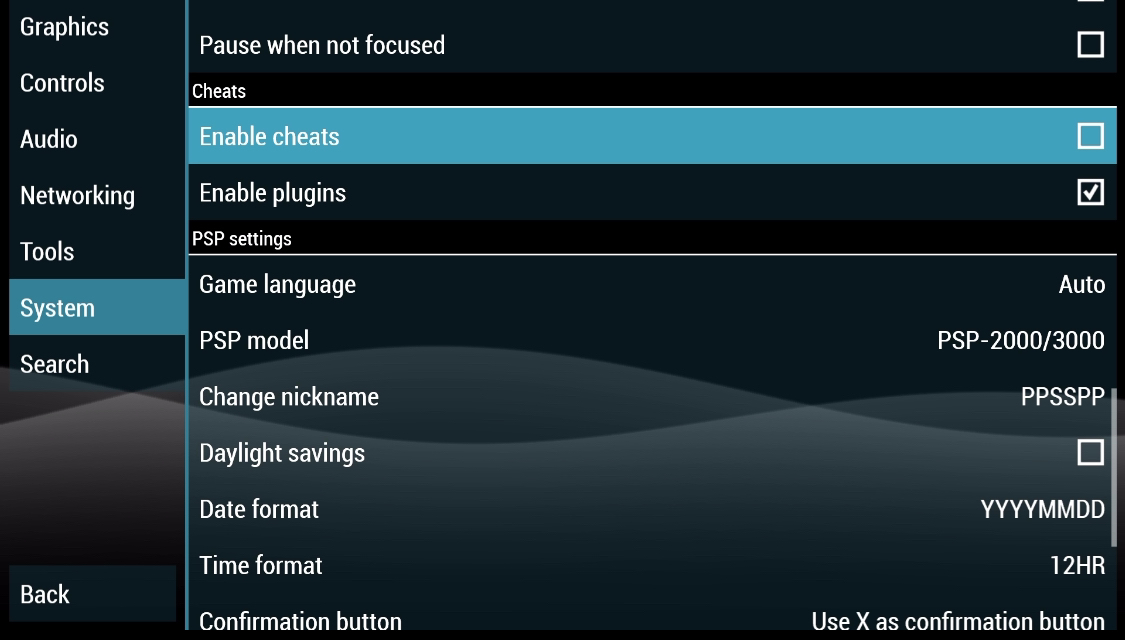
Make sure to Turn it on and Enjoy it.
PPSSPP Internal Storage Users
To setup PPSSPP with Internal Storage, You have to pick Use App Private Data when you load PPSSPP up Just like in the Picture:
Once you've done that then
Games
to upload your Games:
Dev portal > File explorer > LocalAppData > PPSSPP > Localstate > Create a games folder here
Your Games should be ISO or CHD files.
You can upload them as .zip files, and the dev portal will prompt you to unzip automatically.
Textures, Cheats and Others
For Custom Textures, cheats etc. Upload them to their respective folders within:
Dev portal > File explorer > LocalAppData > PPSSPP > Localstate > PSP
Credits
External Guide written by DeltaModz (@notma.)
Internal Guide written by MewLew (@mewlew.)
Special Thanks to alouisious (@alouisious)