What is LaunchPass?
LaunchPass is a Frontend that is capable of launching ROMs in most Emulators on Xbox One and Series S|X Consoles.
LaunchPass (Frontend)
Frontend for emulators, NTFS USB mandatory for LaunchBox assets.
- Installs LaunchPass via Device Portal
- LaunchBox to USB keeps assets off internal storage
- Supports multiple emulators via Manage Emulators
- Wrong NTFS permissions block USB access
- Forgetting to set correct emulator paths breaks launching
- Needs full LaunchBox folder on USB, internal storage is limited
Install LaunchBox to NTFS USB before wiring emulators, double-check app/game type per instructions.
Requirements Checklist
-
External USB Drive You will need a properly formatted USB drive to use LaunchPass. The USB drive must be formatted in NTFS and have the correct permissions - see the Xbox Developer Mode Setup guide for the steps. We recommend using an external SSD for smoother performance.
-
Developer Mode on Xbox To run homebrew applications such as LaunchPass, you need to enable Developer Mode. This allows you to install applications that aren't available from the Microsoft Store. If you haven't enabled Developer Mode yet, don't worry - we've got you covered in the Xbox Developer Mode Setup guide.
-
LaunchBox You will need LaunchBox to use LaunchPass.
Setting up LaunchPass on Xbox
- On your PC, open LaunchPass on Emulation Revival Store and download LaunchPass (
LaunchPass_*_x64.msixbundlefrom the releases mirror), then download LaunchPass - Dependency files (Dependencies_x64.zip). - Extract
Dependencies_x64.zipso you have a folder ofx64.appxdependency packages (install these through Device Portal when prompted, one file at a time).
Transfer the Files to Xbox
- Go to Xbox Dev Mode on your Xbox. Look for the IP address of your Xbox on the Developer Home Screen (it looks like 192.168.x.x).
- On your PC, open a web browser and enter the Xbox IP address in the URL bar. This opens the Xbox Device Portal.
- Sign in using your Xbox Developer credentials.
Upload LaunchPass
- In the Device Portal, go to My Games & Apps.
- Click Add, then select Choose File.
- Select the
LaunchPass_*.msixbundle, click Next, then add each dependency.appxfrom your extractedDependencies_x64folder until the wizard has them all listed. - Click Start and wait until you see Package successfully registered.
- Go to Dev Mode on your Xbox then Select LaunchPass and click Guide button on your controller > View Details Turn LaunchPass Game to App to be able to use Launchpass properly.
If the app doesn't install correctly or gets stuck, refresh the page and retry.
Install LaunchBox on USB
- You will need to Download LaunchBox.
- Open LaunchBox Setup App then Choose USB Location (E:\LaunchBox) to install on USB instead of Local Computer User.
Setup Emulators on LaunchPass
- Open LaunchBox on your USB
- Go to MENU > Tools > Manage > Emulators
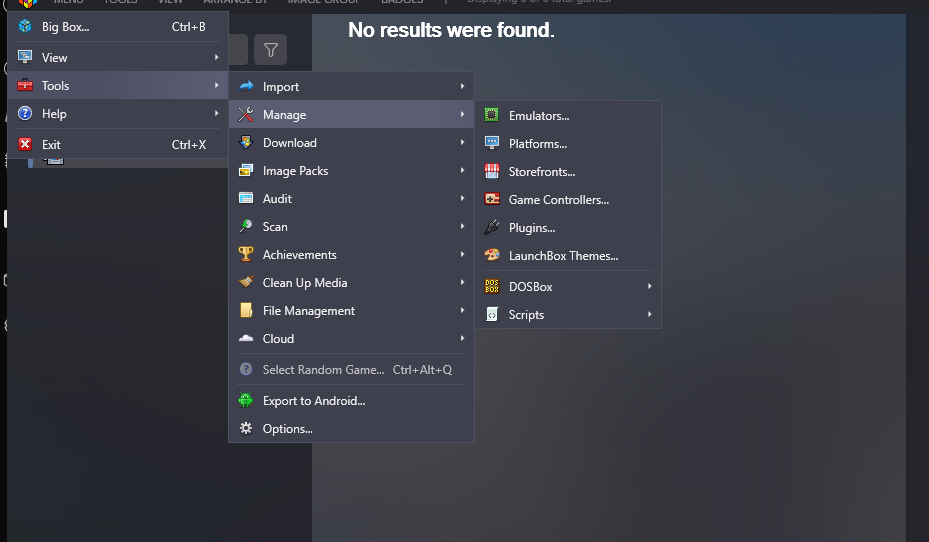
- Click Add button
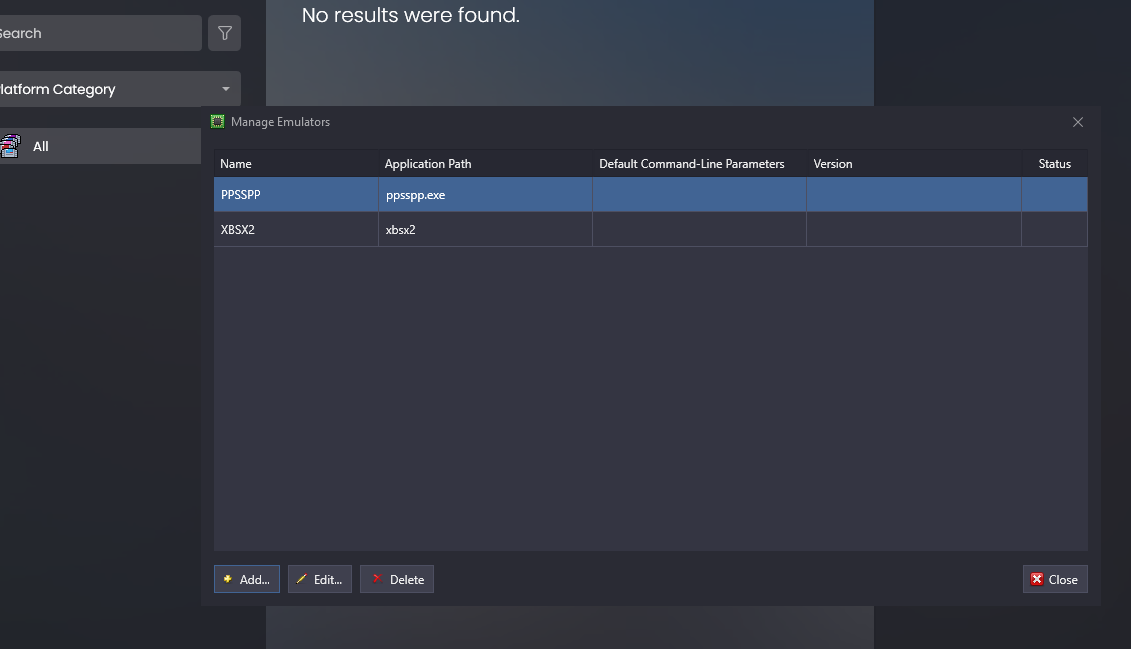
I'm only gonna create for PS2/PSP Games, You can add many emulators you wish
XBSX2 Installation on LaunchPass
- Make sure to write Emulator name correctly and then for Application Path, Make sure they are in lowercase.
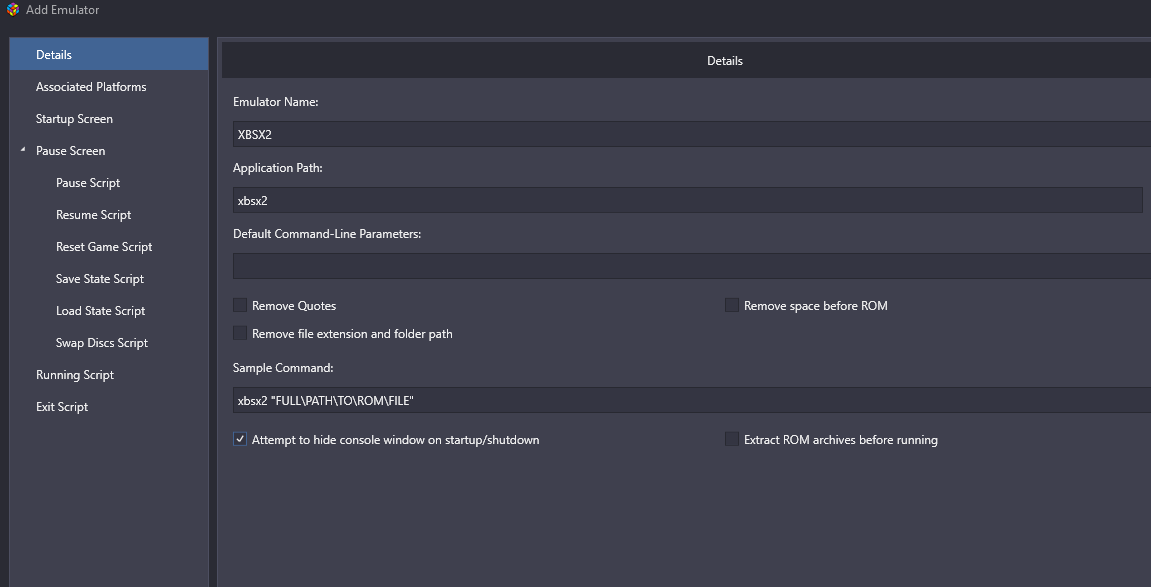
Check "Attempt to hide console window on startup/shutdown"
- Go to Associated Platforms Tab > Type Sony Playstation 2
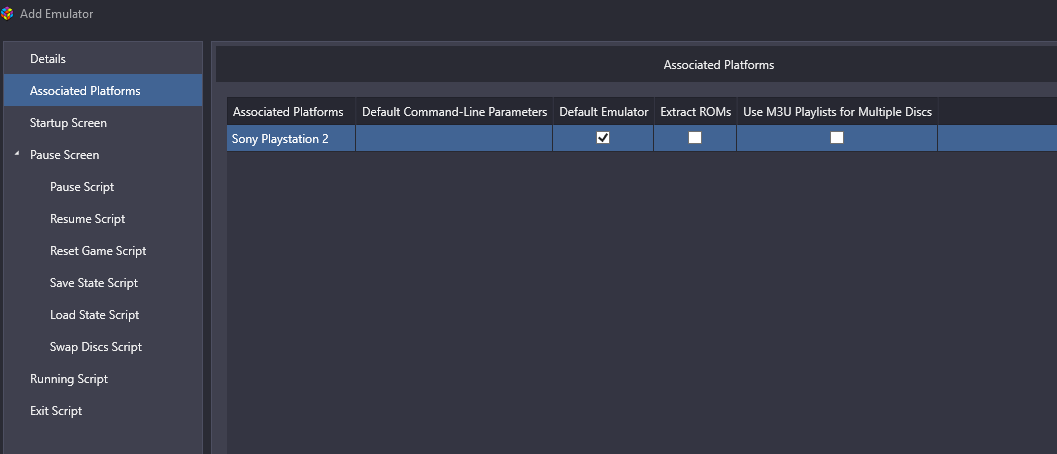
- Make sure Default Emulator is Checked
- Click Add once you are done
Standalone PPSSPP Installation on LaunchPass
- Click Add Option on Manage Emulators again
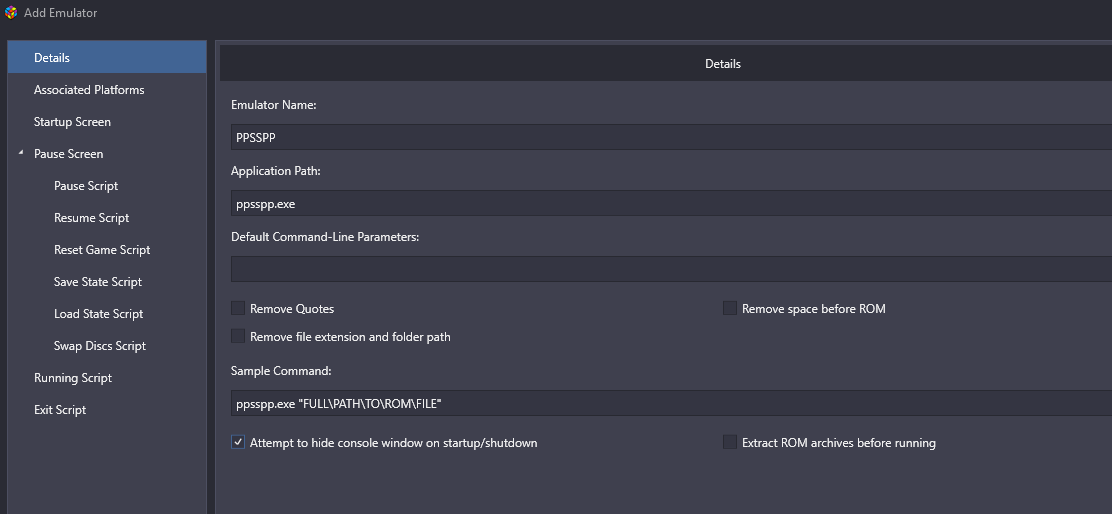
BE SURE TO PUT APPLICATION PATH .exe IN THE END IF YOU ARE USING STANDALONE EMULATOR
- Make sure to put What I wrote In the Picture
- Go to Associated Platforms Tab
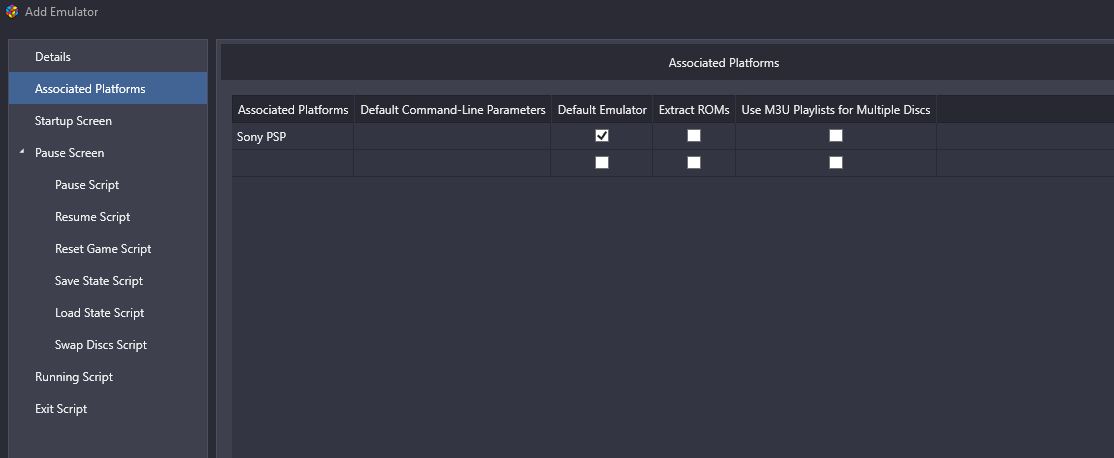
- Put Sony PSP on list then finally Click Add button Once you are done!
Add Games on Launchbox
- Go to TOOLS > Import > ROM Files
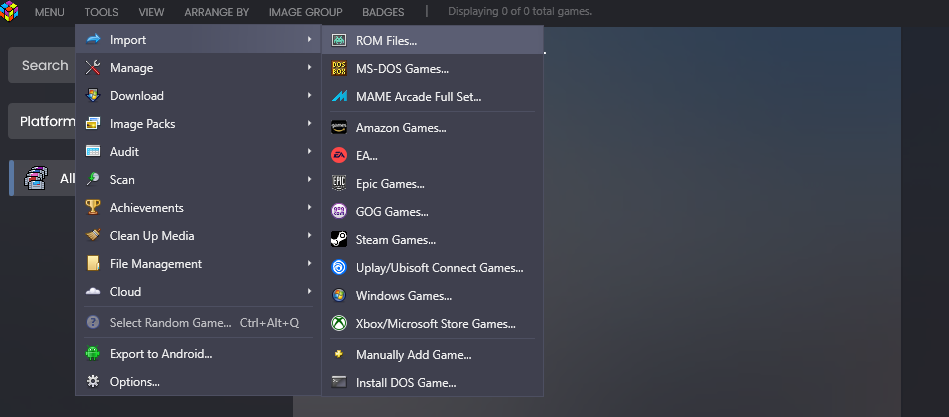
- For XBSX2 Put your PS2 Games Folder there
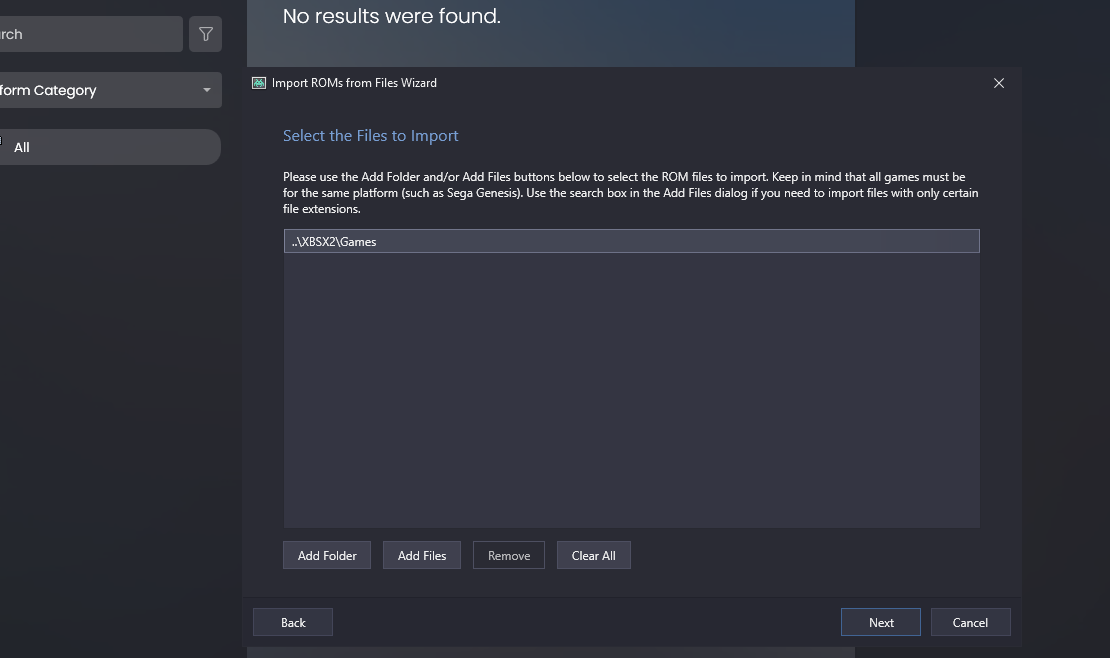
- Click Next Button
- Choose Sony Playstation 2 From list for XBSX2
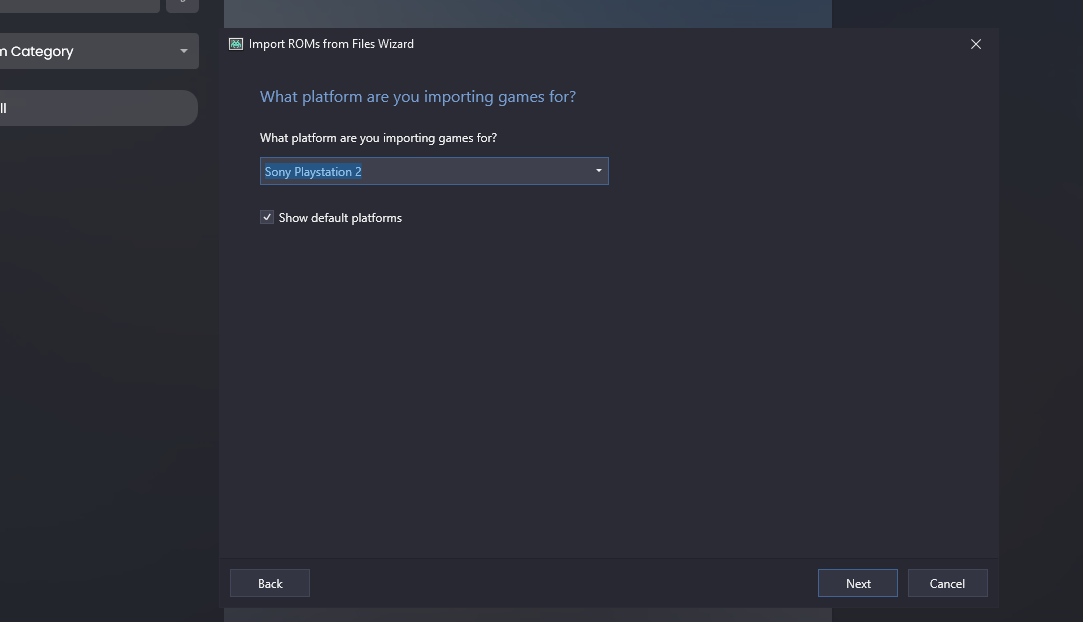
- Click Next Button
- XBSX2 is automatically on List you can Click Next Button Again
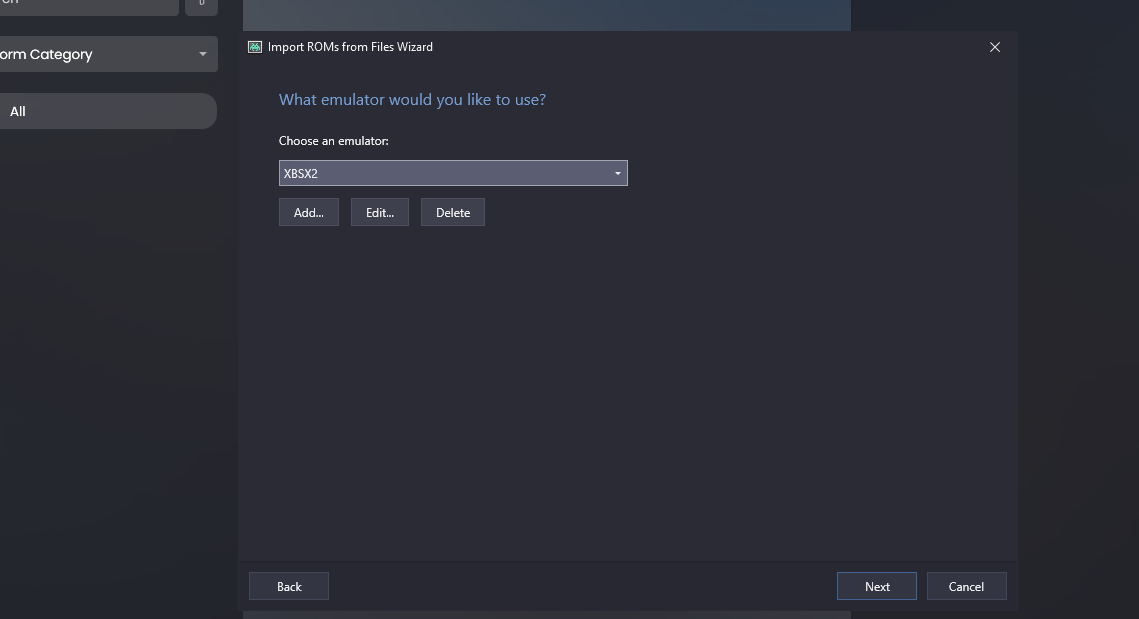
-
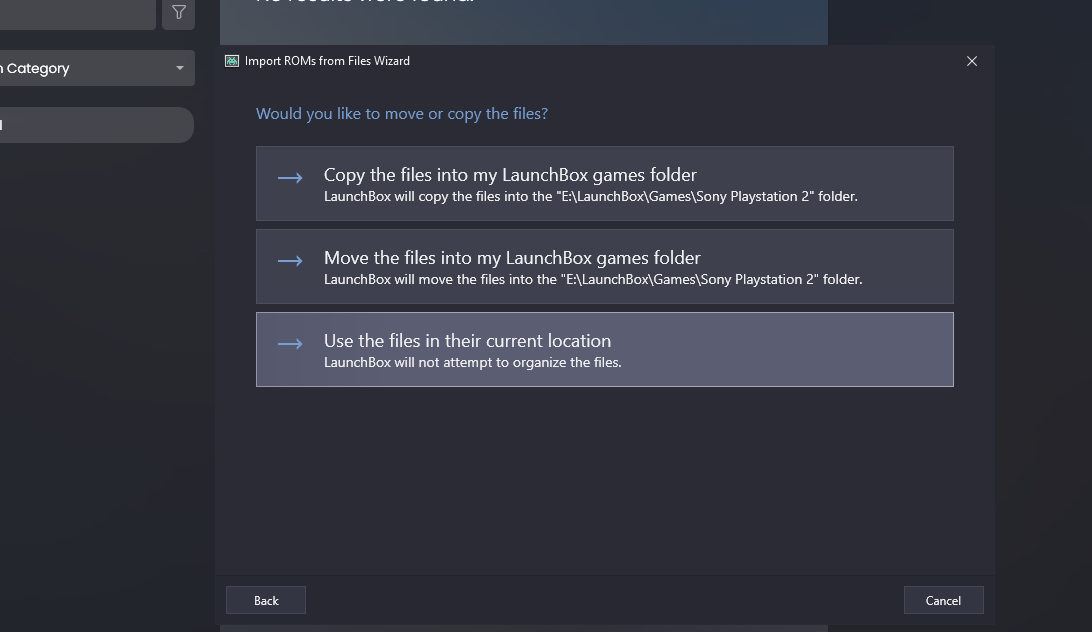
note
Use the files in their current Location ::: 8. Click Next Button again
- You can download which covers to load on LaunchPass (I'm gonna Check All)
- Click Next button again (EmuMovies isn't needed.)
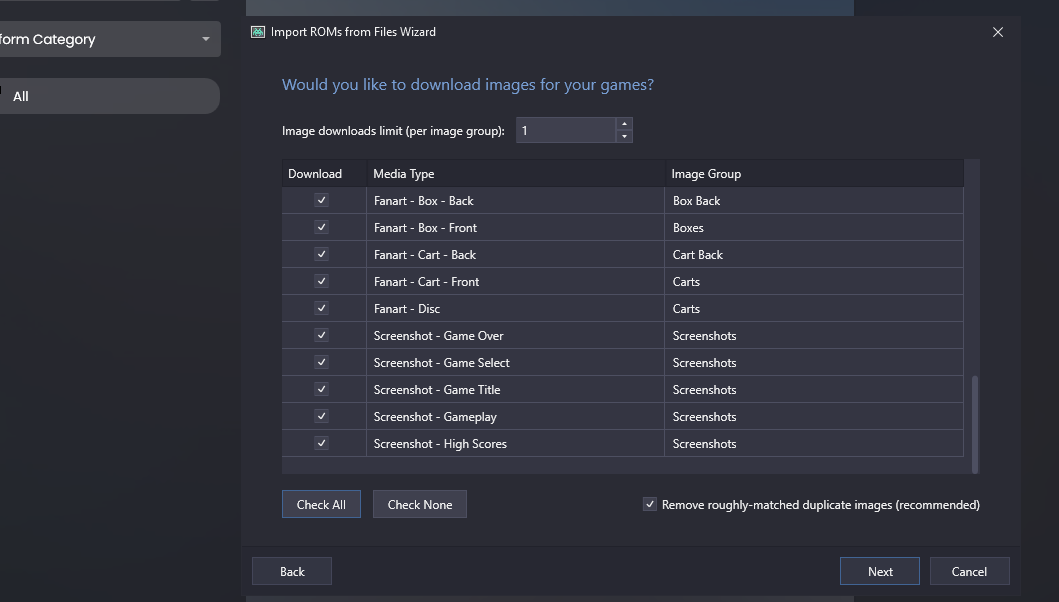
- Make sure to Deselect All Options in the below Picture
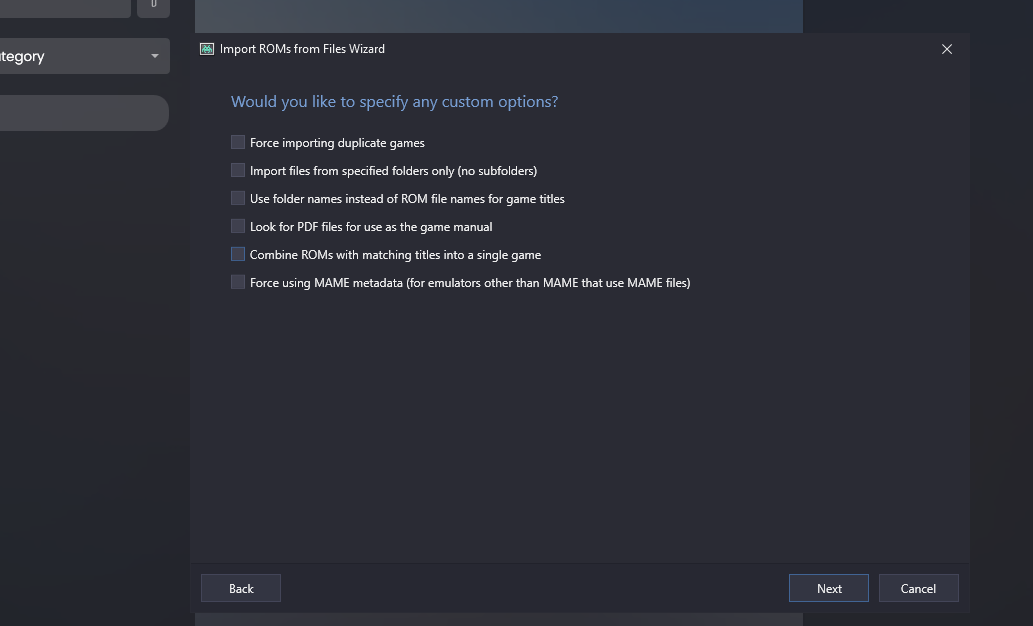
- Be sure to check if All Games show up
- Click Finish Button once you are done!
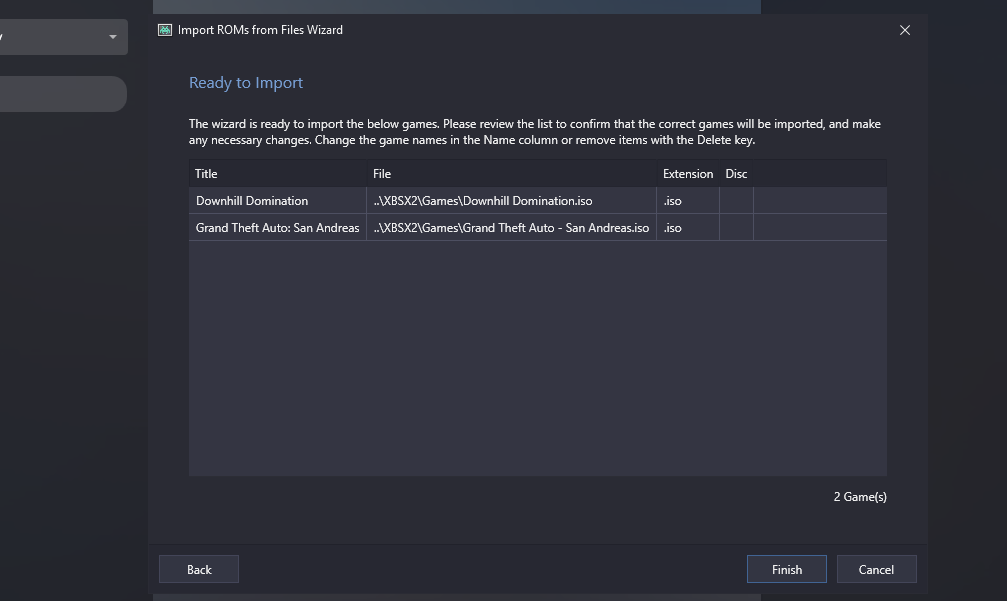
Wait for all coverarts of PS2 Games to download
Once all are downloaded successfully then I will explain PPSSPP Guide
- TOOLS > Import > ROM Files
- For PPSSPP Put your PSP Games Folder there
- Click Next Button
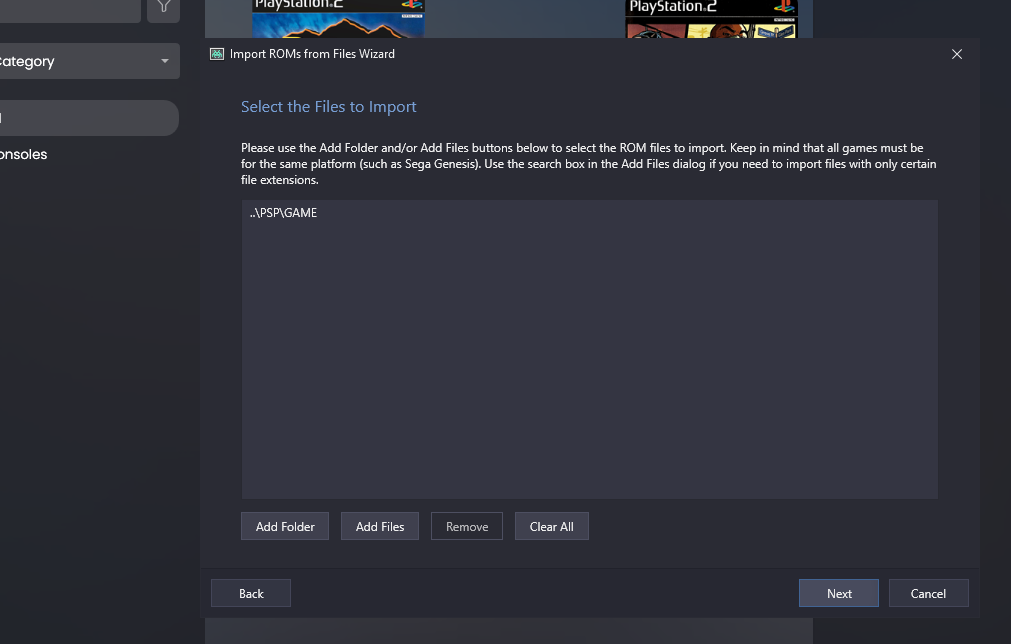
- Choose Sony PSP From list for PPSSPP
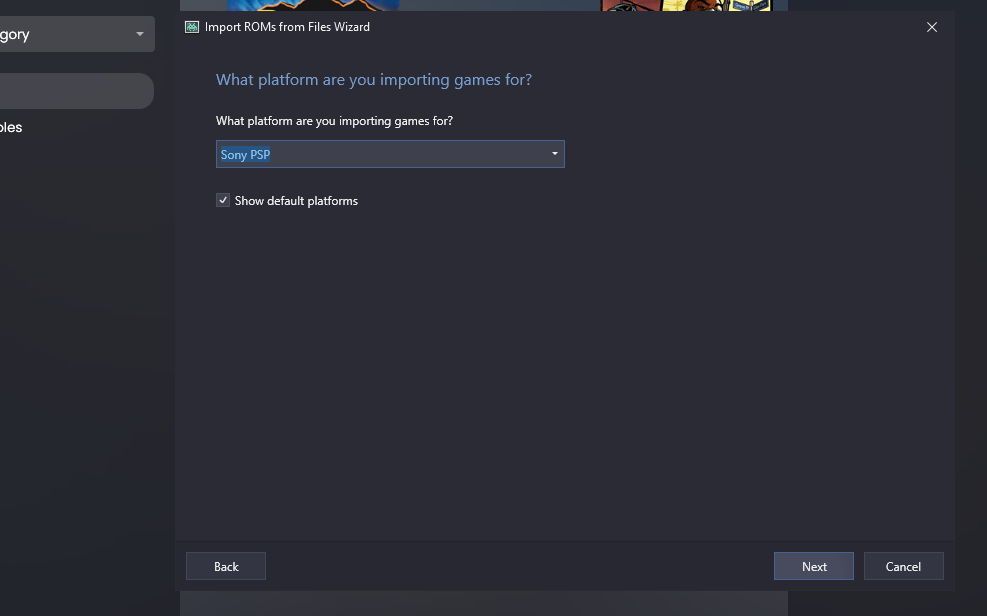
- Click Next Button
- PPSSPP is automatically on List you can Click Next Button Again
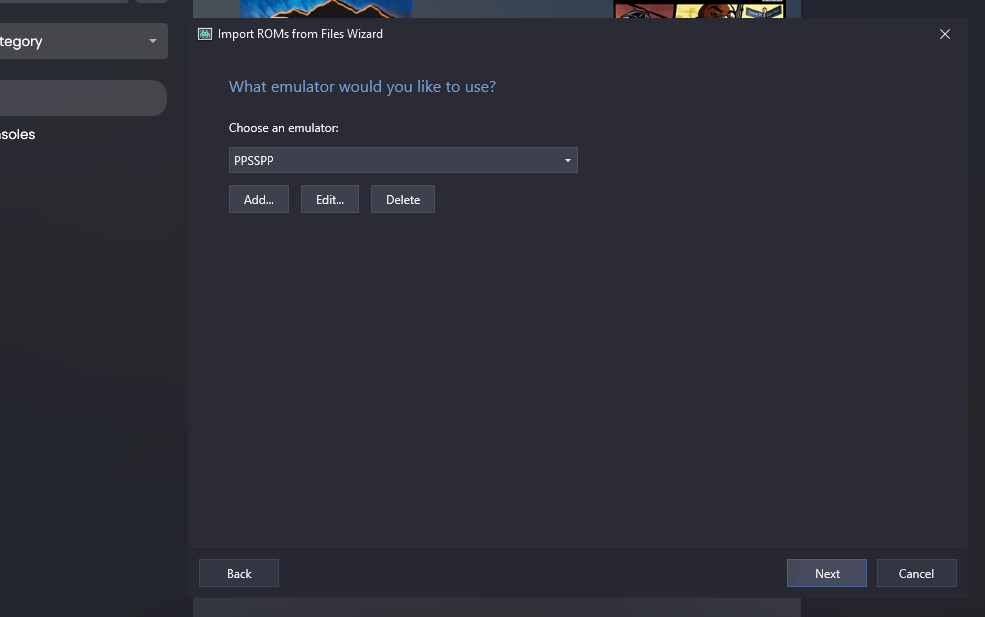
7 and last, You can do same thing as 7/8/9/10/11 from XBSX2 LaunchPass ^^
then Wait for coverarts to Download then Eject USB and plug into your Xbox Console
then Open LaunchPass on your Xbox Console
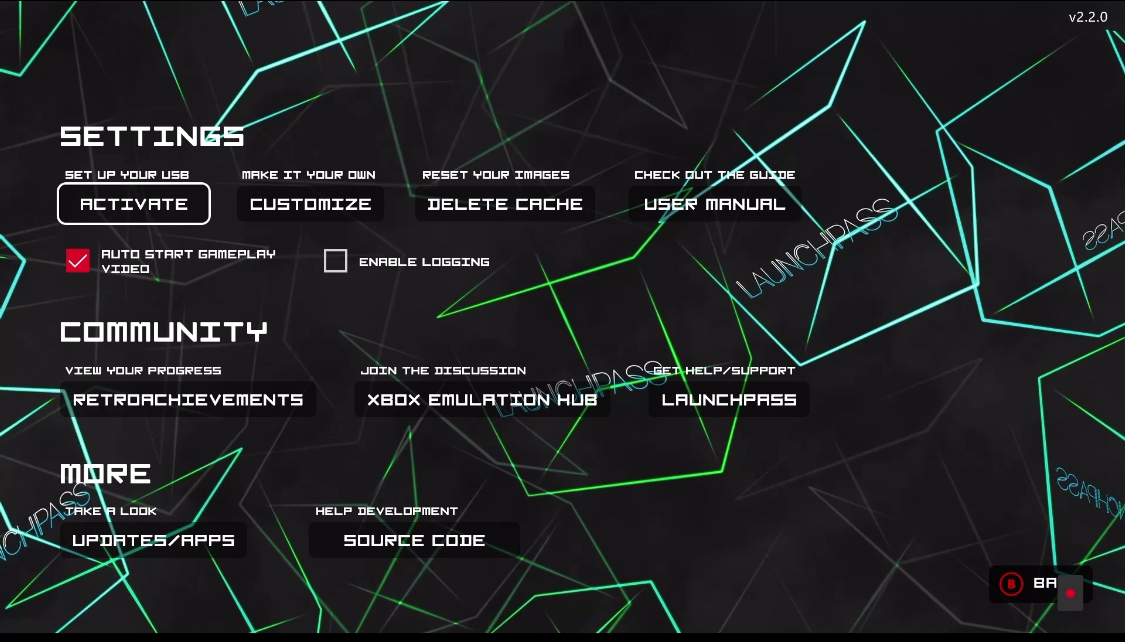
Activate it & Enjoy it!! ^^