Installing Visual Studio 2026 Community for UWP Development (Xbox) - Stern
This guide outlines the steps to download and install Visual Studio 2026 Community Edition with the necessary components for Universal Windows Platform (UWP) development, specifically for Xbox development in Developer Mode.
Step 1: Download and Install Visual Studio 2026 Community
-
Download Visual Studio: Go to the official Visual Studio Downloads page: https://visualstudio.microsoft.com/downloads/
-
Community Edition: Locate the "Community 2026" section. This is the free version suitable for individual developers, open-source projects, and learning.
-
Free Download: Click the "Free download" button under "Community 2026". This will download the Visual Studio Installer. Here's a direct link to the download, although it's best practice to get it from the official page: Free download
-
Run Installer: Once the download is complete, run the downloaded installer file (named
VisualStudioSetup.exe). -
Install Community Edition: In the Visual Studio Installer window, you should see "Visual Studio Community 2026" listed. Click the "Install" button associated with it.
Step 2: Install UWP Components
-
Workloads: The installer will prompt you to select "Workloads". Workloads are bundles of tools and components for specific development scenarios.
-
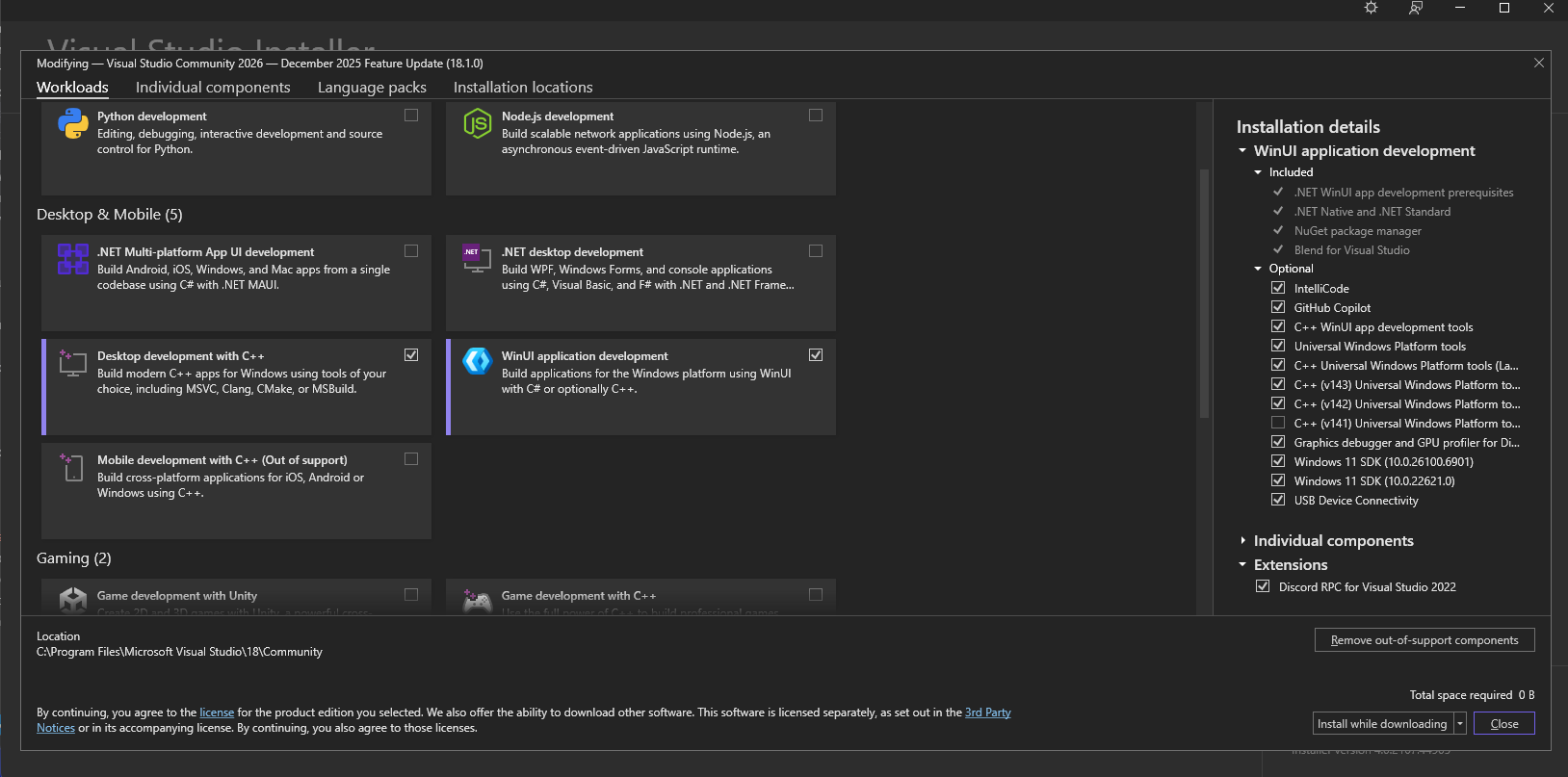
Required Workload: Crucially, check the box next to "WinUI application development". This workload includes the essential components for UWP development:
- Windows 11 SDK (or the latest available Windows SDK ex: Windows 11 SDK (10.0.26100.6901))
-
(Optional) Additional Workloads: Depending on your specific development needs, you might also want to select these workloads:
- .NET desktop development: If you plan to create traditional desktop applications using WPF (Windows Presentation Foundation) or WinForms.
- Desktop development with C++: If you intend to work with C++ UWP applications (this guide focuses on C++, so it is highly recommended).
-
Individual Components: Click on the "Individual components" tab at the top of the installer window. This allows you to change the installation. Ensure the following components are checked (you may need to scroll and search in the "Optional" section):
- C++ Universal Windows Platform tools (Latest MSVC): This is the most recent version of the C++ UWP tools for Visual Studio 2026. It's generally best to install this.
- C++ (v143) Universal Windows Platform tools: This is an older version. Install this in addition to the latest version if you need to build projects targeting older SDKs or if you encounter compatibility issues with the latest version.
- C++ (v142) Universal Windows Platform tools: This is an even older version. Install this in addition to the above if you need to build projects targeting older SDKs or if you encounter compatibility issues with newer versions.
- C++ (v141) Universal Windows Platform tools: This is an older version. Install this in addition to the above if you need to build projects targeting older SDKs or if you encounter compatibility issues with newer versions. Having multiple versions installed provides maximum flexibility.
- Universal Windows Platform Tools: There should be no need to check this, because it's included in the workload selected in step 3.
-
Install: Once you've selected the necessary workloads and individual components, click the "Install" button (it might say "Modify" if you're changing an existing installation) in the bottom-right corner of the installer window.
-
Wait: The installation process will take some time, depending on your internet speed and the components selected. The installer will download and install everything.
-
(Optional) Restart: After the installation is complete, you may be prompted to restart your computer. It's generally a good idea to do so.
This completes the installation of Visual Studio 2026 Community with the necessary UWP components. You are now ready to start developing UWP applications for your Xbox in Developer Mode. You will likely use Visual Studio to build and deploy your applications to the Xbox.